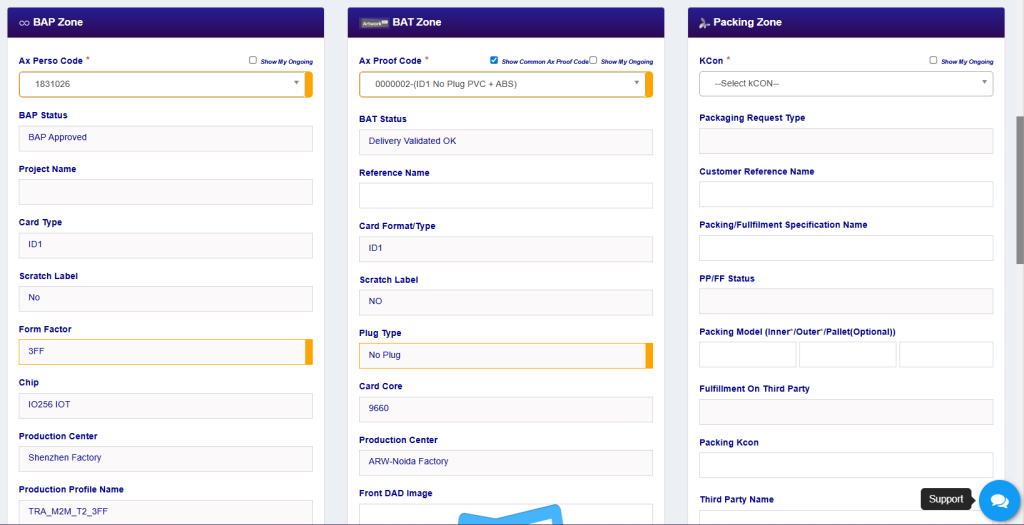
Harmony New Request comes under Product Matrix Section where TC/CS can create requests with multiple set of different Product Types with or without Import. While creating new request user can either make the multiple requests with the same combination of BAP, BAT & KCON with different Product Type having unique CP Code or Item Code. When selecting Product Type then each time new set of screen appears under customer product information with respect to Product type and remaining all Zones intact.
There are 4 Type of Product Type categories available. Below the product type categories.
- SIM Only
- SIM + Idemia Fulfillment Services
- SIM + Third Party Fulfillment Services
- Fulfillment only
In Harmony, no separate login is required just have the common features in SIMPhony to login as per user assigned roles for each application.
Login
TC/CS has to login on SIMphony using his/her credentials. For creation of HARMONY request, he has to click on “HARMONY” Module


Request Flow on HARMONY:

Flow Breakup
Request in Harmony can be created via two ways. 1st one is to create without importing XLS File and 2nd way to create with importing XLS File.
TC/CS initiates New Harmony Request Creation when Chhose Customer and then Select Chhose Product Type then only Import XLS section will be enabled
TC/CS initiates New Harmony Request Creation when Chhose Customer and then select without selecting user can select AxPersoCode from Dropdown under BAP Zone
Three different categories also have been defined like BAP Zone, BAT Zone and Packing Zone.
Unless TC/CS select any AxPersoCode then remaining AxProofCode and KCON couldn’t be selected to move further with the request.
Going to elaborate multiple way to create Harmony Requests below :
New Request without Import AX using SIM Only :
TC/CS initiates New Harmony Request Creation Select Customer & Select Product Type as SIM Only & Chhose AxPersoCode from BAP Zone & Chhose AxProofCode from BAT Zone & Chhose KCON under Packing Zone
When Product Type gets selected then Under Customer Product Information few fields label names get changed such as AxPersoCardItemCode, AxPersoCardItemName

New Request without Import AX using SIM + Idemia Fulfillment Only:
TC/CS initiates New Harmony Request Creation Select Customer & Select Product Type as SIM + Idemia Fulfillment Only & Chhose AxPersoCode from BAP Zone & Chhose AxProofCode from BAT Zone & Chhose KCON under Packing Zone
When Product Type gets selected then Under Customer Product Information few fields label names get changed such as AxMobilePackItemCode, AxMobilePackItemName.

New Request without Import AX using SIM + Third Party Fulfillment Only:
TC/CS initiates New Harmony Request Creation Select Customer & Select Product Type as SIM + Third Party Fulfillment Only & Chhose AxPersoCode from BAP Zone & Chhose AxProofCode from BAT Zone & Chhose KCON under Packing Zone
When Product Type gets selected then Under Customer Product Information few fields label names get changed such as AxPersoItemCode, AxPersoItemName,3rd Party Reference, Ax Mobile Pack PBC, Ax Mobile Pack Item Code, Ax Mobile Pack Item Name.

New Request without Import AX using Fulfillment Only:
TC/CS initiates New Harmony Request Creation Select Customer & Select Product Type as Fulfillment Only then only KCON under Packing Zone will be enabled and BAP Zone and BAT Zone will be greyed out.
For the Product Type ” Fullfillment Only ” CP Code and CP Name is not required only 3rd Party Reference is mandatory.
When Product Type gets selected then Under Customer Product Information few fields label names get changed such as 3rd Party Reference, Ax Mobile Pack PBC, Ax Mobile Pack Item Code, Ax Mobile Pack Item Name.


New Request with Import AX using SIM Only :
TC/CS initiates New Harmony Request Creation Select Customer & Select Product Type as SIM Only and then Click on Import Ax Info Upload button. Only XLS file is allowed to create Harmony Request via Import.
For the Product Type ” SIM Only ” All the relevant Fields will be auto filled like AxPersoCardItemCode, AxPersoCardItemName, AXPBC and along with this BAP Zone, BAT Zone and Packing Zone values.
When Product Type gets selected then Under Customer Product Information few fields label names get changed such as AxPersoCardItemCode, AxPersoCardItemName


New Request with Import AX using SIM + Idemia Fulfillment Only :
TC/CS initiates New Harmony Request Creation Select Customer & Select Product Type as SIM + Idemia Fulfillment Only and then Click on Import Ax Info Upload button. Only XLS file is allowed to create Harmony Request via Import.
For the Product Type ” SIM + Idemia Fulfillment Only ” All the relevant Fields will be auto filled like AxMobile PackItemCode, AxMobilePackItemName, AXPBC and along with this BAP Zone, BAT Zone and Packing Zone values.
When Product Type gets selected then Under Customer Product Information few fields label names get changed such as AxMobile PackItemCode, AxMobilePackItemName

New Request with Import AX using SIM + Third Party Fulfillment Only:
TC/CS initiates New Harmony Request Creation Select Customer & Select Product Type as SIM + Third Party Fulfillment Only and then Click on Import Ax Info Upload button. Only XLS file is allowed to create Harmony Request via Import.
For the Product Type ” SIM + Third Party Fulfillment Only ” All the relevant Fields will be auto filled like AxPersoItemCode, AxPersoItemName, AXPBC and along with this BAP Zone, BAT Zone and Packing Zone values.
When Product Type gets selected then Under Customer Product Information few fields label names get changed such as AxPersoItemCode, AxPersoItemName

New Request with Import AX using Fulfillment Only:
TC/CS initiates New Harmony Request Creation Select Customer & Select Product Type as Fulfillment Only and then Click on Import Ax Info Upload button gets disabled that means using Import TC/CS couldn’t create request via Import as BAP and BAT Zone remains grey out.

Quality Checks in Place
- AX information consistency versus Customer or ERP is currently not checked (Recommendation Triple check every entry)
- Customer name is checked when importing AX PBC XLS file (Note – customer name in SIMphony and AX don’t always match so some manipulation may be required)
- AX Perso Code, AX proof code and KCON however are controlled versus customer.
- The tool will block entry creation if CARD TYPE is not compatible between BAP and BAT
- The tool will raise a warning (not blocking) if Scratch Label and Form Factor don’t match between BAP and BAT
- The KCON is mandatory for all the Production Center except for Process Type IATF based Request.
- If KCON is not available for other sites in case of IATF as well, then Packing Model fields are mandatory.
- Auto propagation have been put in place for Multi Sourcing
- Some fields (e.g, AX PBC) have formatting controls put in place.


New Request Creation for Ongoing BAP
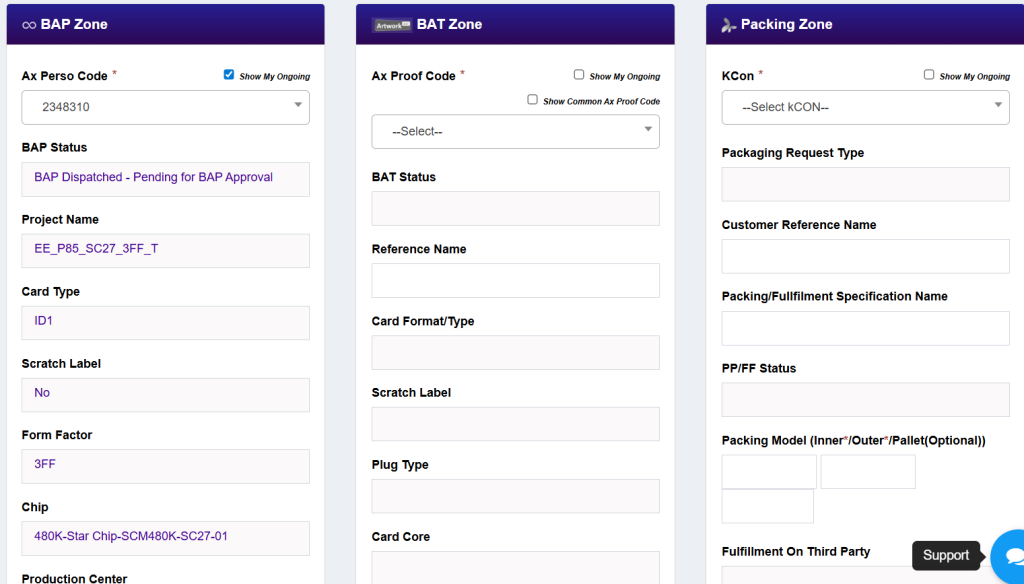
TC/CS initiates New Harmony Request Creation Select Customer & Select any Product Type and then check the My Ongoing Checkbox for SIT under BAP Zone.
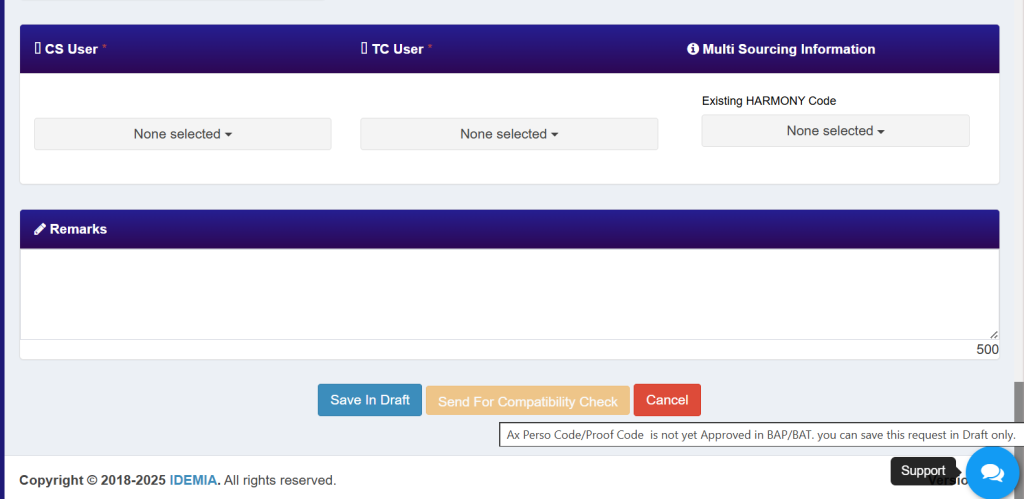
Request can be created via both ways Either with Import or Without Imports. Request can be saved in draft only for Ongoing Case.
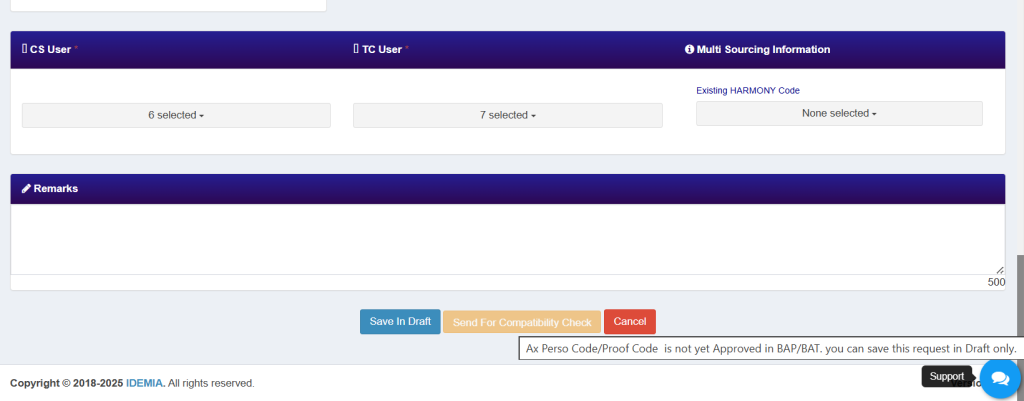
When check the Ongoing checkbox then Request can’t be move further for compatibility check or Live. this feature allows TC/CS to record the ongoing request for the respective customer. It saves the records in draft only. TC/CS can only save in draft so that they would see the records which is under preparation for further live.
New Request Creation for Ongoing BAT
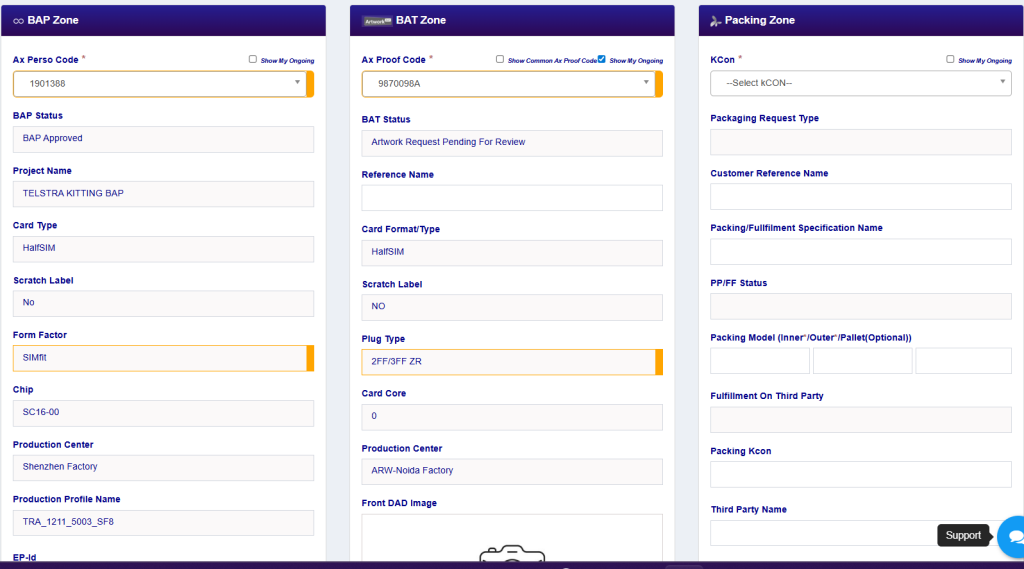
TC/CS initiates New Harmony Request Creation Select Customer & Select any Product Type and then check the Show My Ongoing Checkbox for AxProofCode under BAT Zone.
Request can be created via both ways Either with Import or Without Imports. Request can be saved in draft only for Ongoing Case.
When check the Ongoing checkbox then Request can’t be move further for compatibility check or Live. this feature allows TC/CS to record the ongoing request for the respective customer. It saves the records in draft only. TC/CS can only save in draft so that they would see the records which is under preparation for further live.
New Request Creation for Ongoing KCON
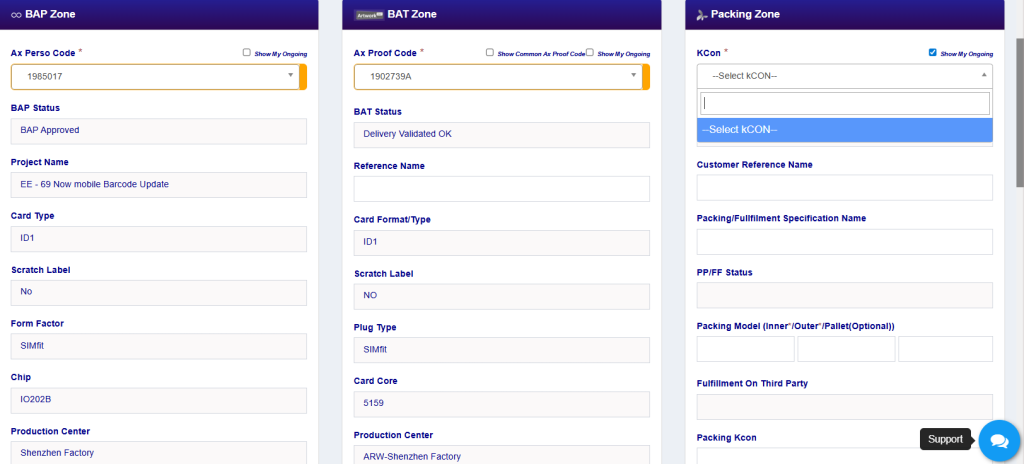
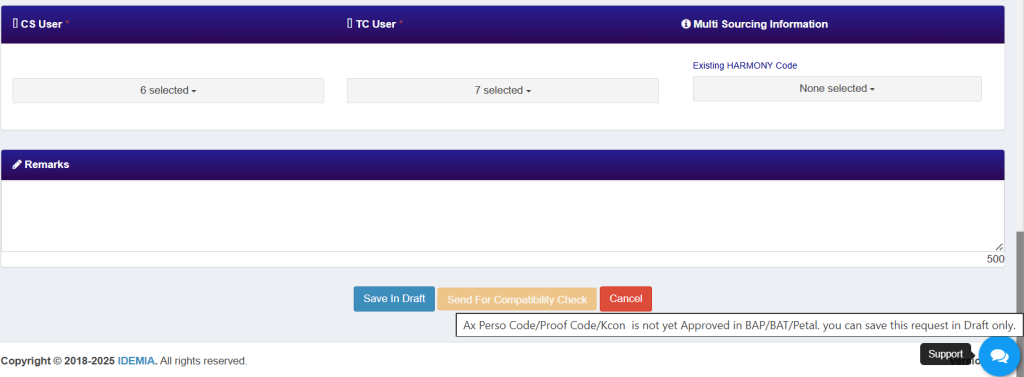
TC/CS initiates New Harmony Request Creation Select Customer & Select any Product Type and then check the Show My Ongoing Checkbox for KCON under Packing Zone.
Request can be created via both ways Either with Import or Without Imports. Request can be saved in draft only for Ongoing Case.
When check the Ongoing checkbox then Request can’t be move further for compatibility check or Live. this feature allows TC/CS to record the ongoing request for the respective customer. It saves the records in draft only. TC/CS can only save in draft so that they would see the records which is under preparation for further live.
New Request Creation using Common AxProofCode
TC/CS initiates New Harmony Request Creation Select Customer & Select any Product Type and then under the BAT Zone, Check the checkbox for show common axproofcode for request.
Common AxProofCode feature has been introduced in Harmony with the purpose of compatible existence of some AxPersoCode with common AxProofCode so that request can be created easily.
TC/CS can request with or without import using common axproofcode as well.
Using Common AxProofCode , TC/CS can request easily for live product analysis. In common AxProofCode we are showing Form Factor and Plug Type for better identification of AxProofCode.