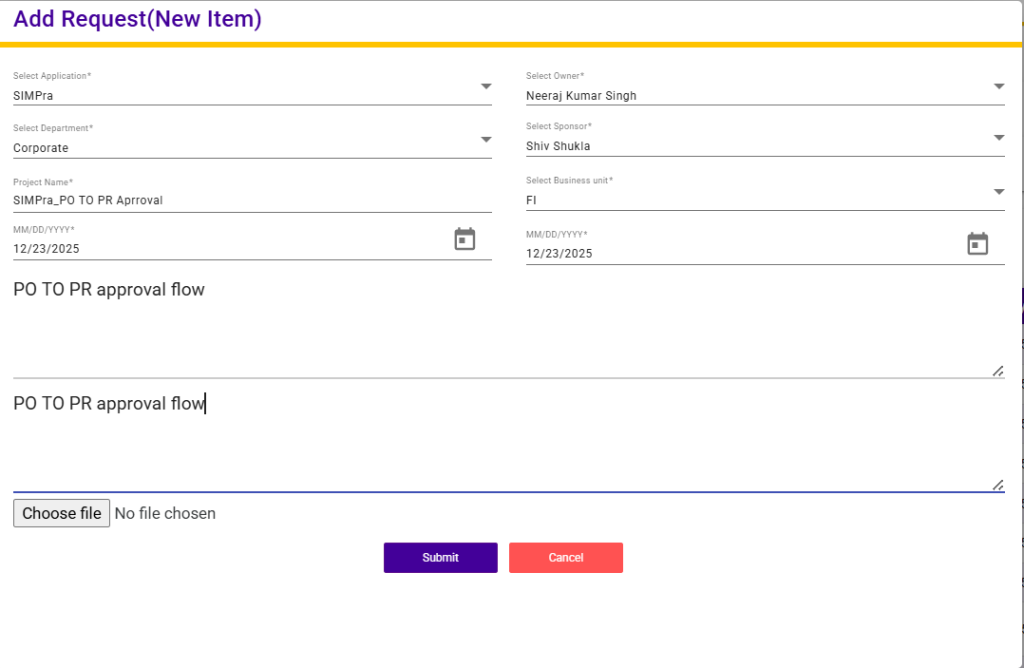
All Request List
The All Request List page provides a centralized view of all project requests across different systems (HR SYSTEM, SIMPhony, and SIMPra). It allows users to easily search, filter, and manage requests.
Key Features:
- Search & Filter:
- Users can search requests by keywords in the search box.
- Requests can be filtered based on status using the “Select status” dropdown.
- “Search” and “Reset” buttons enable quick data retrieval and clearing of filters.
- System-wise Request Panels:
- Requests are grouped by system: HR SYSTEM, SIMPhony, and SIMPra.
- Panels can be expanded or collapsed for a cleaner interface.
- SIMPra Request Table:
- When expanded, the SIMPra panel displays a detailed table with the following columns:
- S No. – Serial number of the request.
- REQ NO. – Unique request number (clickable link).
- Project Name – Name of the project associated with the request.
- Sponsor – Name of the sponsor approving the request.
- Department – Department that raised the request.
- Business Unit – Business unit related to the project.
- Requested Date – Date when the request was submitted.
- Exp. Delivery Date – Expected date for project completion.
- Status – Current status of the request (e.g., Requested, Closed, Sponsor Approved).
- Update – Button to modify or update the request details.
- When expanded, the SIMPra panel displays a detailed table with the following columns:
- Add New Requests:
- Users can click Add Request to create a new project request.
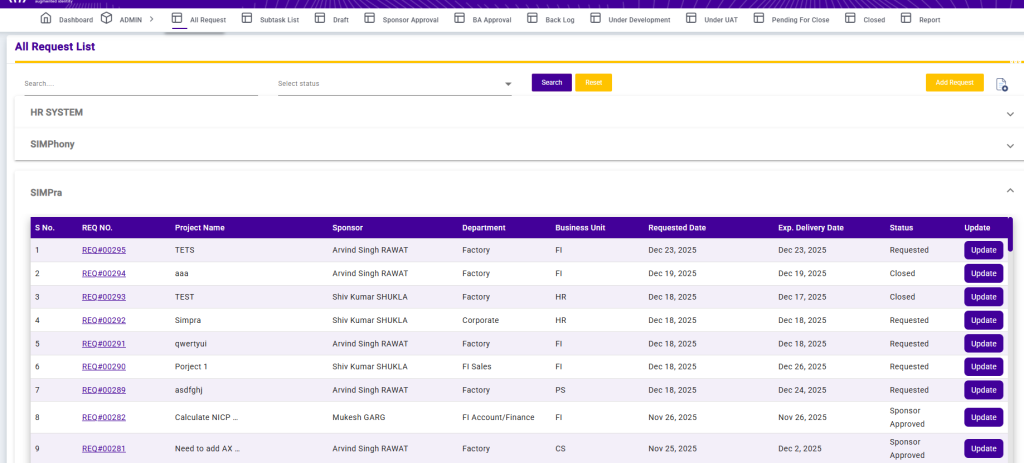
Add Request
Use this form to submit a request for a new project item. Please provide all required information accurately to ensure smooth processing.
Form Details:
- Select Application: Choose the relevant application for this project request.
- Select Owner: Specify the owner responsible for this project.
- Select Department: Indicate the department under which the project falls.
- Select Sponsor: Choose the project sponsor who will oversee or approve this request.
- Project Name: Enter a descriptive name for the project.
- Select Business Unit: Choose the business unit associated with this project.
- Start Date / End Date: Enter the project timeline using MM/DD/YYYY format.
- Project Description: Provide a brief summary of the project, its goals, and key deliverables.
- Business Need: Explain the business requirement or problem that this project will address.
- Attachments: Upload any supporting documents if applicable.
Instructions:
- Complete all mandatory fields before submitting.
- Ensure that dates are entered correctly to avoid scheduling conflicts.
- Attach relevant documents to support your request.