
BAP Process
BAP Request creation on TC Module.
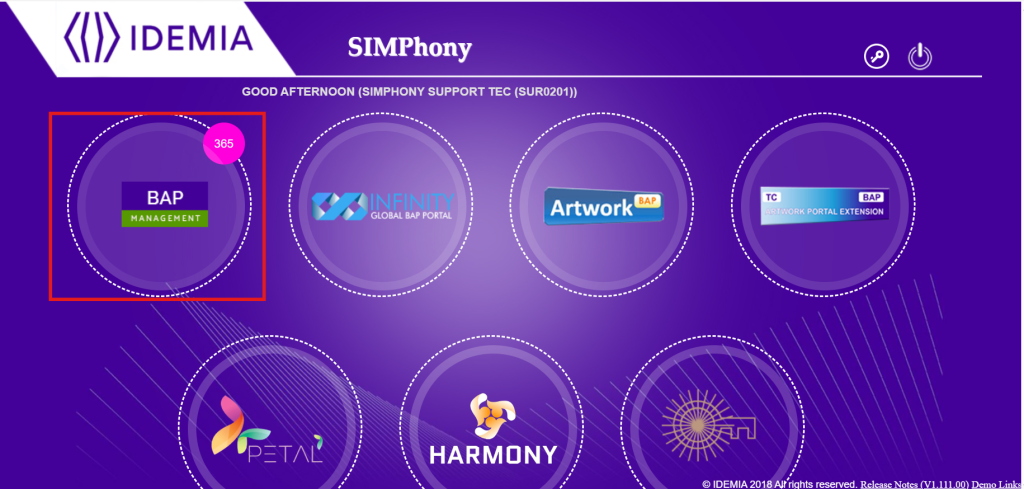
TC has to login on SIMPhony using his/her credentials. For creation of Classic SIM/UICC BAP, TC has to click on “BAP Management” Module.
UICC Request
Path: TC Request > New Request > UICC
Request type tab under New Request in SIMPhony by TC.
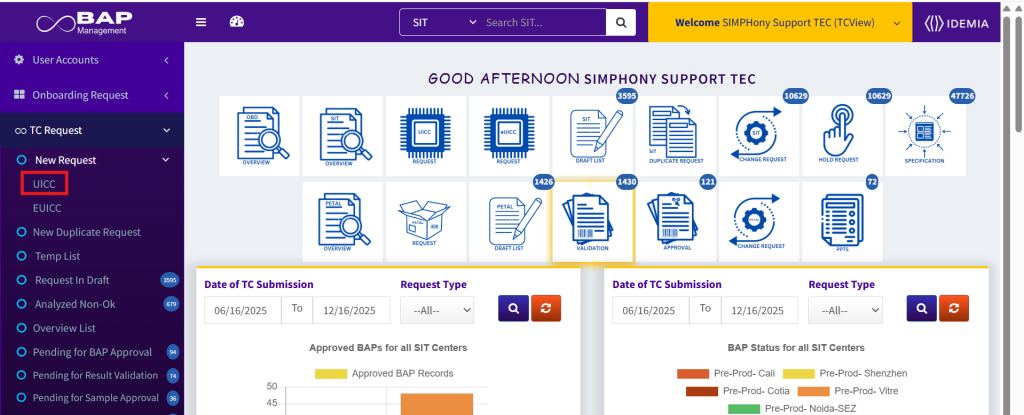
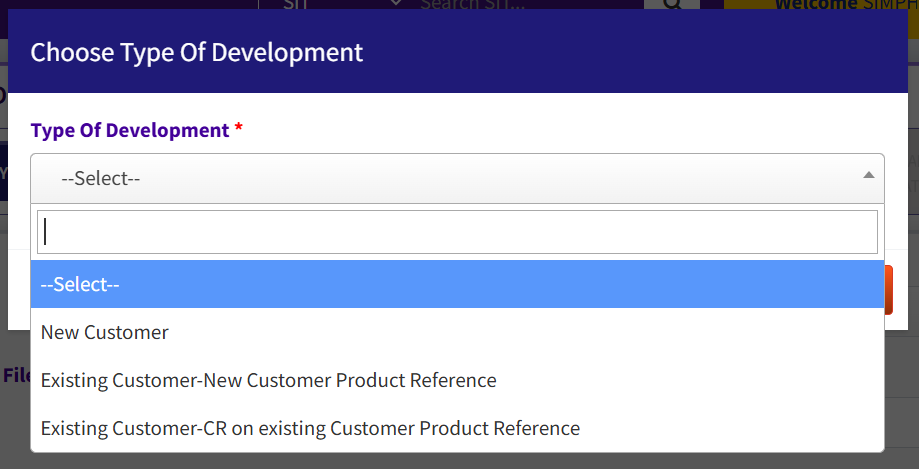
Upon clicking UICC, following popup opens where we need to select the “Type of Development” (Mandatory) from the dropdown menu. For reference here, we will select the “Existing Customer-New Customer Product Reference”, and proceed further after clicking the Submit button, however we have 3 options, and we can choose accordingly, refer the screenshot below.
- New Customer > In case the customer is new or there are no existing requests related to it (customer) in the system.
- Existing Customer-New Customer Product Reference > In case the customer already exists in the system, but product reference is new.
- Existing Customer-CR on existing Customer Product Reference > In case the customer already exists in the system, but the requirements match with a pre-existing request in the system whose reference that is AX Perso Code needs to be mentioned while this option is selected in the creation of BAP request.
The “Type of Development” (Mandatory) selected in the popup is prepopulated in the UICC form (cannot be edited or updated) which is opened after clicking the Submit button as shown below in the screenshot.
Request Type Page
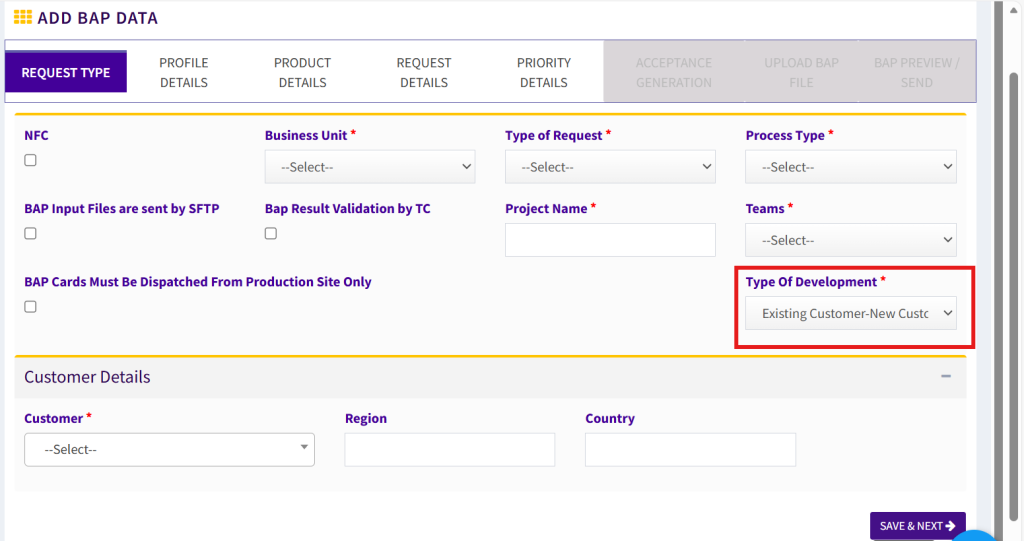
Request Type Page Attributes
- NFC > Near Field Communication (NFC) technology allows users to make secure transactions, exchange digital content, and connect electronic devices with a touch. This check box is ticked in case needed.
- Business Unit > Please select business unit from dropdown like ‘Citizen Identity’ or ‘Mobile Operators’
- Type of Request > Type of Request for the BAP must be selected from dropdown (Options: Customer Request, D2C & Chip Migration, and Test / Prototype / Proof of Concept (BAP not eligible to mass production).
- Process Type > Process Type for the BAP must be selected from dropdown (Options: Standard or IATF).
- BAP Input Files are sent by SFTP > This checkbox is selected in case BAP Results needs to be validated by TC post Results Validation by TEC & Prior to BAP cards Dispatch by Pre-Prod/Pending for BAP approval.
- Bap Result Validation by TC > This checkbox is selected in case BAP Results needs to be validated by TC post Results Validation by TEC & Prior to BAP cards Dispatch by Pre-Prod/Pending for BAP approval.
- Project Name > Project Name of each request must be filled mandatorily in this text box.
- Teams > Teams must be selected from this dropdown (Options: IOT, Automotive, India, APAC, LATAM, EUROPE, MEA, GAM, and NORAM).
- BAP Cards Must Be Dispatched from Production Site Only > This checkbox is selected in case BAP Cards are to be only dispatched from the Production Site.
- Type of Development > This field is auto-populated.
- Customer > This field in Customer Details section must be selected from the dropdown depending upon form which customer the request has been raised.
- Region and Country > These fields are auto-populated based on the customer selected.
- Save & Next Button > Post filing all info on request type page, click on Save & Next> Info will be saved, and you will be redirected to Profile Details Page.
Profile Details Page
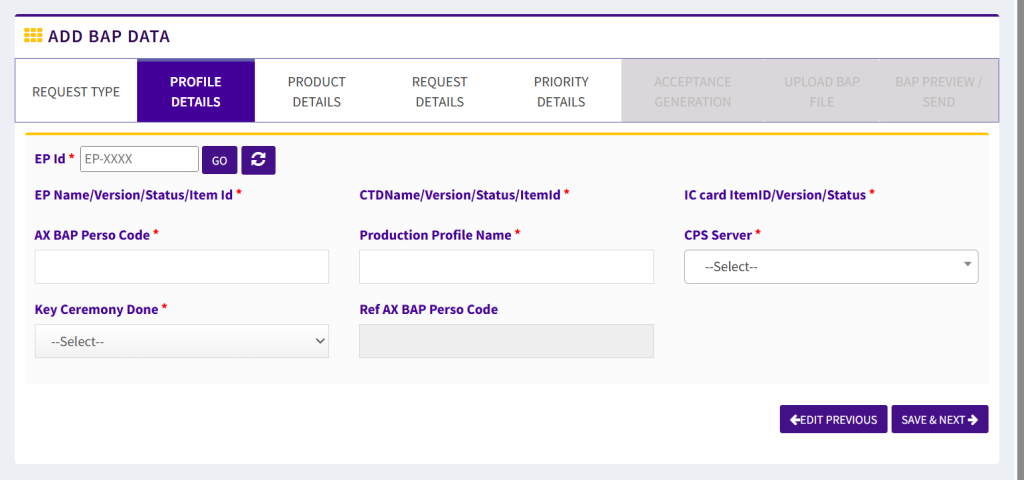
Profile Details Page Attributes
- EP ID > TC has to write EP-ID in this text box. Click on go & then on Refresh to synchronize info of EP/CTD/IC Card Image Master from SharePoint on real time basis. Please raise SR on SharePoint TEC interface in case you see any wrong Info in any of EP/CTD/IC Card Image Master post clicking on refresh on SIMphony. Once info gets updated in SharePoint, click again on refresh on SIMphony and updated info will be synchronized on SIMphony. This field is mandatory and needs to be filled. On the basis of the EP ID the following fields are auto populated: EP Name/Version/Status/Item Id, CTDName/Version/Status/ItemId, and IC card ItemID/Version/Status.
- EP Name/Version/Status/Item Id > This dropdown will be auto populated based on EP-ID selected by TC. Status update of this Master is under responsibility of TEC team & can be updated using Masters Tab. BAP can be submitted only if EP status is “BAP Approved”
- CTDName/Version/Status/ItemId> This dropdown will be auto populated based on EP-ID selected by TC. Status update of this Master is under responsibility of TEC team & can be updated using Masters Tab. BAP can be submitted with CTD status as “Customer Sample” OR “Ready for Prod”. CTD Masters can also be updated by TC from his interface from CTD Masters in case BAP is submitted to Pre-Prod with CTD Status as “Customer Sample” in case of new CTD.
- IC card ItemID/Version/Status> This dropdown will be auto populated based on EP-ID selected by TC. Status update of this Master is under responsibility of TEC team & can be updated using Masters Tab. BAP can be submitted only if IC Card Image status is “BAP Approved”
- AX BAP Perso Code > Unique AX BAP Perso code needs to be filled in this text box.
- Production Profile Name > Unique Production Profile Name needs to be filled in this text box.
- CPS Server > CPS server must be selected from the options available in the dropdown.
- Key Ceremony Done > BAP Request will only be allowed to send further to TEC/Pre-Prod team only in case Key Ceremony done is marked as “Yes”. TC needs to ensure that Key Ceremony is already done prior to proceeding with BAP request on SIMphony. Option of “No” is available only to save request in draft mode.
- Ref AX BAP Perso Code > TC can fill any Reference AX BAP Perso code in this column. This reference BAP will be used by Pre-Prod to deliver in quick time. Ref AX BAP Perso code will be auto populated in case BAP request is created using “New Duplicate request” feature.
- Save & Next > Post filing all info on profile details page, click on Save & Next> Info will be saved and you will be redirected to product details page.
Product Details Page
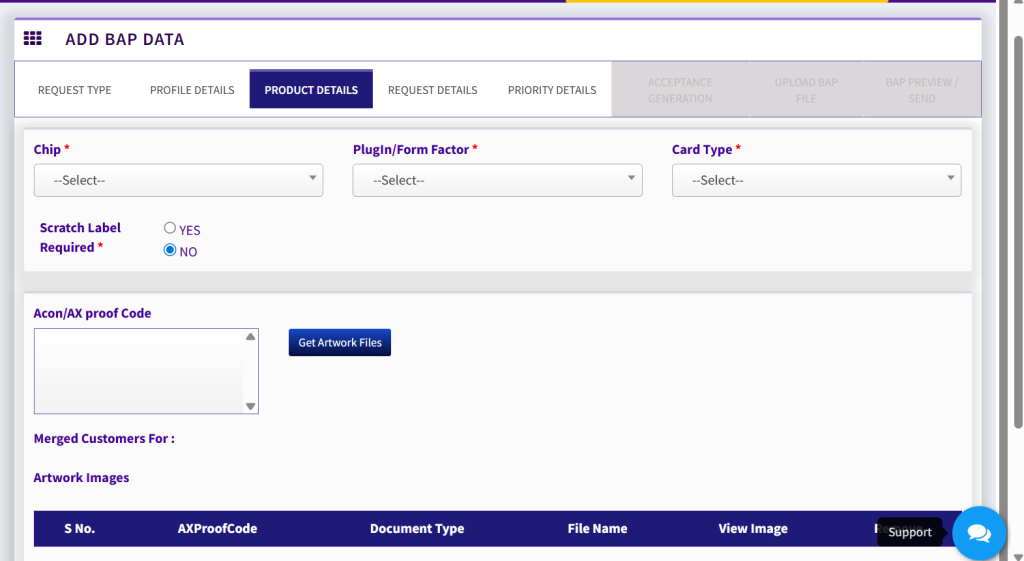
Product Details Page Attributes
- Chip > TC can select chip type from this dropdown. If case required chip type is not available in the chip dropdown, please send an email to Varun.Gupta@idemia.com with the info of chip type required.
- Plugin/Form Factor > TC can select required form factor from this dropdown.
- Card Type > TC can select required Card Type from this dropdown.
- Scratch Label Required > “Yes” or “No” has to be selected in this field based on the scratch label requirement on BAP or Mass Production.
- Acon/AX Proof Code > This field should be filled by TC only in case BAP is required on Artwork printed card body by clicking the button “Get Artwork Files”.
- Edit Previous > Select in case anything needs to be updated on the previous pages.
- Save & Next > Post filing all info on product details page, click on Save & Next> Info will be saved and you will be redirected to request details page.
Request Details Page
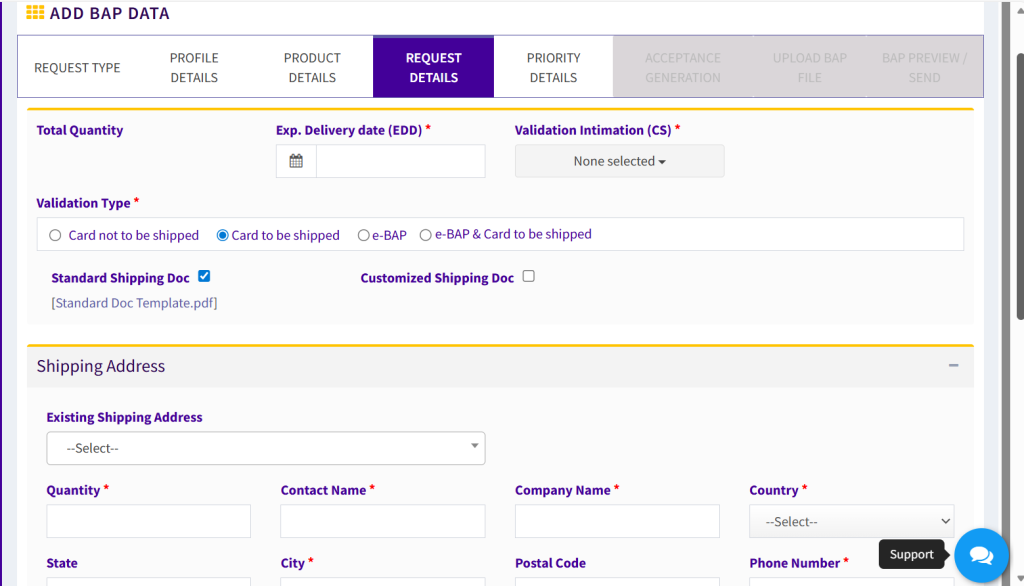
Request Details Page Attributes
- Total Quantity > This field will be auto populated based on the quantities of card mentioned in the shipping Address section.
- Exp. Delivery date (EDD) > Date in this column will be auto populated based on SLA of request.
- Validation Intimation (CS) > You can fill in names of Customer service executive (CS) or any other TC whom you need to share information of this BAP. CS & TC selected in this field will receive all email notifications auto generated from SIMPhony portal.
- Validation Type > “Cards not be Shipped” has to be selected when no cards have to be shipped to customer. “Cards to be Shipped” has to be selected when physical BAP cards have to be shipped to customer. ‘e-BAP’ in case electronic BAP is needed or ‘e-BAP & Card’ in case electronic BAP and physical BAP Cards both are needed. TC has also to fill Shipping address details in case he opts for Cards to be Shipped.
- Shipping Address > TC has to fill in Quantity, Contact Name, Shipping Address, postal code, Phone number of the person to whom BAP cards needs to be dispatched. Post filling all shipping details TC has to click on “add” to save. TC can add multiple address fields in case BAP cards has to be dispatched to multiple location.
- TC Remarks > Any important info which needs to be shared with either TEC or Pre-Prod must be added in this field.
- Edit Previous > Select in case anything needs to be updated on the previous page.
- Save & Next > Post filing all info on request details page, click on Save > Info will be saved.
Priority Details Page
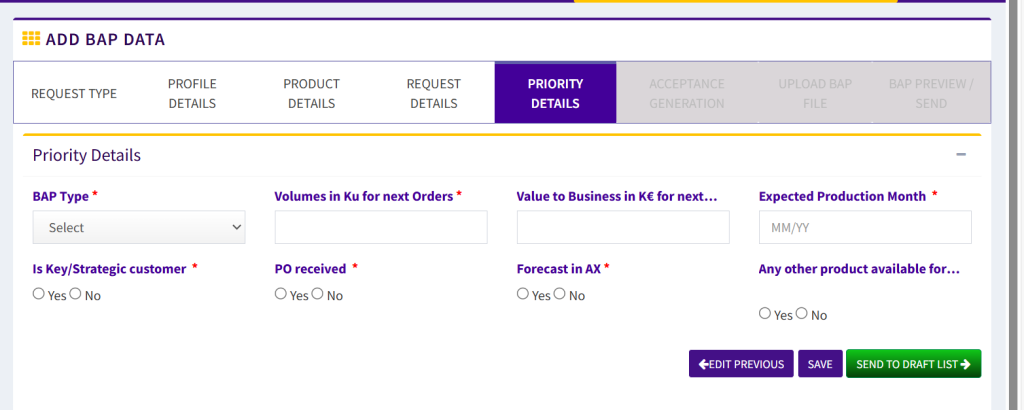
Priority Details Page Attributes
- BAP Type > BAP Type must be selected from items present in the dropdown (Options: Customer Request, Chip Migration/D2C/Eol, Special Projects/Presales).
- Volumes in Ku for next Orders > Mandatory field and must be filled.
- Value to Business in K€ for next Order > Mandatory field and must be filled.
- Expected Production Month > Mandatory field and must be filled.
- Is Key/Strategic customer > Mandatory field and must be filled.
- PO received > Mandatory field and must be filled.
- Forecast in AX > Mandatory field and must be filled.
- Any other product available for production > Mandatory field and must be filled.
- Edit Previous > Select in case anything needs to be updated on the previous page.
- Save > Post filing all info on request details page, click on Save > Info will be saved.
- Send to Draft List > Info till now will be saved in the Temp list. By clicking on “send to draft list”, request will be saved in draft list.
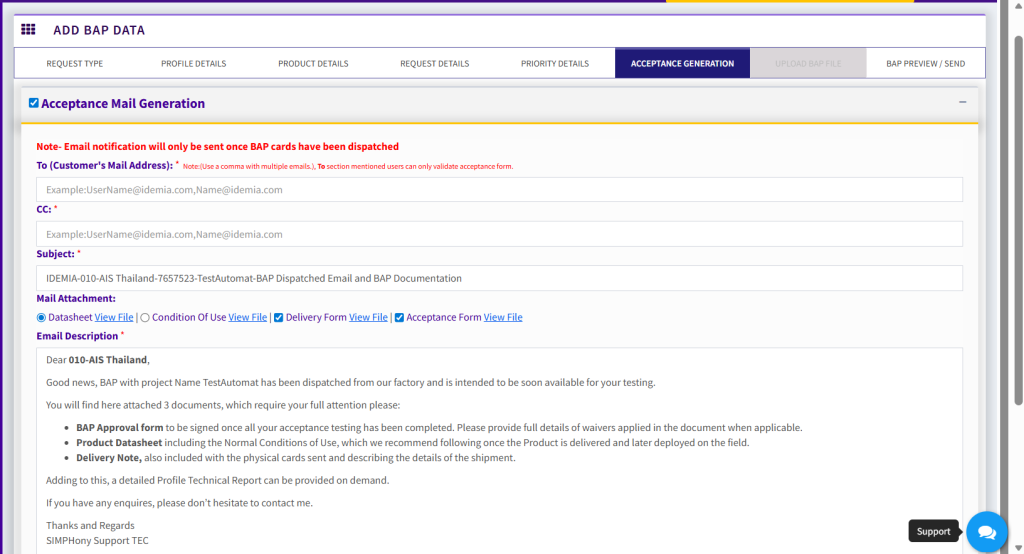
Acceptance Generation Page
This page allows to opt in for automatic E-mail generation sent to stakeholders when sample BAP cards for acceptance testing is dispatched from Idemia. The E-mail also includes essential attached documents, like BAP Approval Form, Product Datasheet, and Delivery Note.
TC also has the choice to opt out (in case not required) of this step by unchecking the checkbox Acceptance Mail Generation appearing on the top left corner of the page, refer screenshot below.
Upload BAP File Page
Upload BAP File Attributes
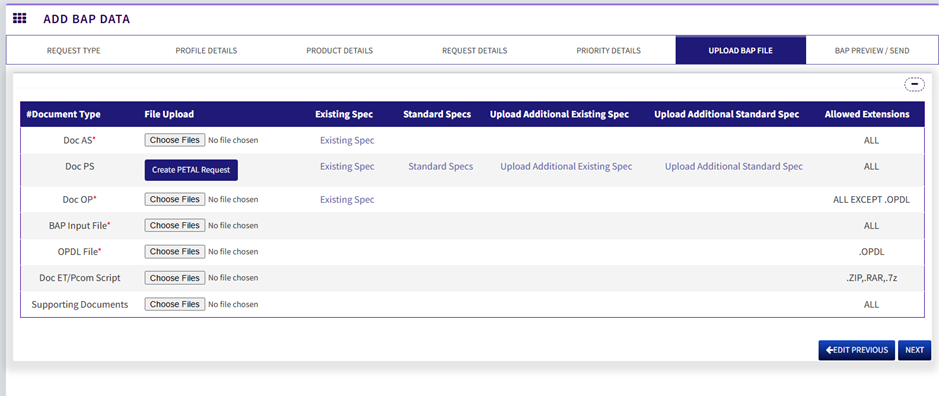
- TC can upload BAP documents required during BAP configuration by Pre-Prod on this screen.
- In case TC want to reuse any Document already used in any previous BAP then you can select it from “Existing Spec” option. Document with same name can’t be re-uploaded on SIMPhony.
- TC also have an option to delete any document in case if document is wrongly uploaded.
- Doc AS > Upload PID (describing the input / output files format and the way of generation of variables).
File naming convention “2058AS015V02” where (2058 is Customer Code, AS is File Type, 015 is File Number, and V02 is file version.) - Doc PS > Upload PS doc (describing the packaging and label requirement) OR Upload NS doc (describing the fulfilment & label requirement from customer).
File naming convention “2058IPTS03.V01_K2304775” where (2058 is Customer Code, IPTS is file type, 03 is file number, V01 is file version, K is for KCON, 2304775 is KCON number.) - Doc OP > Upload OP doc (describing the optical printing requirement, Mandatory).
File naming convention “2058OP002V02_Simplified_Optical” where (2058 is Customer Code, OP is file type, 002 is file number, V02 is file version, and Simplified Optical is again for file type.) - BAP Input File > Upload Input file (Not Mandatory in case live Input Files are sent on SFTP directly to Pre-Prod).
- OPDL File > Upload OPDL file (extract of OPDL tool, Mandatory). File naming convention for OPDL is same as followed in OP file except the file extension (*.OPDL).
- Verification scripts (Full & Light) > Upload zip file (Testing scripts of electrical profile to run during BAP development).
- Supporting Documents > Upload any supporting documents if required.
- Next > Post filing all info on doc uploading page, click on Next > Info will be saved and you will be redirected to profile summary page.
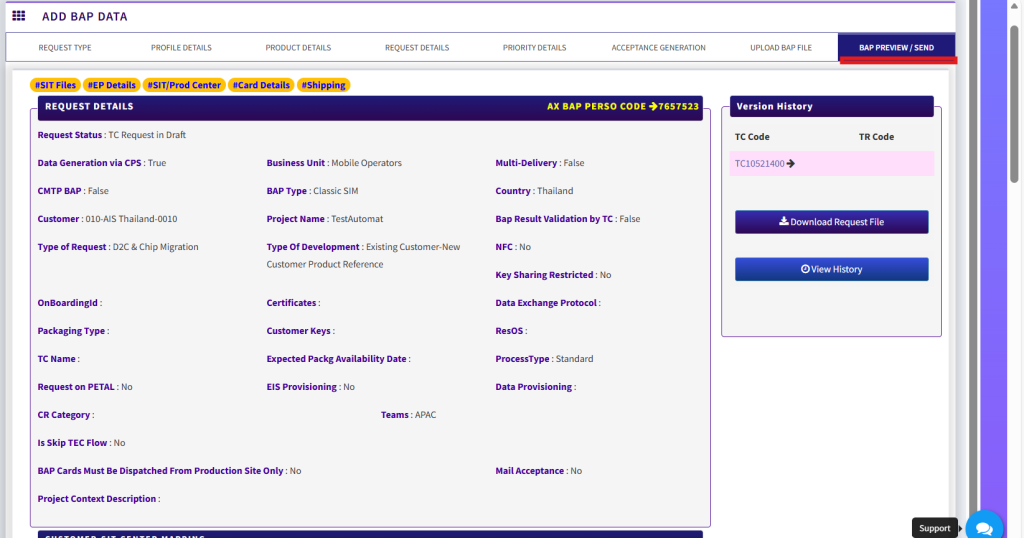
BAP Preview / Send Page
BAP Preview / Send Attributes
- TC can upload BAP documents required during BAP configuration by Pre-Prod on this screen.
- Submit to TEC > Post checking all info on BAP Summary page, click on Submit to TEC > Info will be saved and BAP will be successfully processed from your end.
- Modify BAP data > TC can click on this option in case he finds some issue in BAP info. He will be redirected to Request type tab. He can edit any info in BAP.
- Modify BAP File > TC can click on this option in case he finds some issue in uploaded BAP files. He will be redirected to Upload BAP files tab. He can edit any file in BAP.
Table of all status on SIMPhony with task owner & status type definition
| Request Status on SIMPhony | TASK OWNER | Status type: Normal Progress (N)/ Correction (C) / Change (CR) /Discard, Deleted & Closed (D) | COMMENT/What action to be done? | |||||
| When this status is displayed | Mainly for cases to “unblock” situations | |||||||
| TC | TEC | Pre- Prod | ||||||
| TC Request in Draft | X | N | TC request in draft | |||||
| TC Draft – CR | X | CR | TC request in draft – CR raised by TC | |||||
| TC Draft Analysis Not OK TEC | X | C | TC request in draft – Analysis not ok made by TEC | |||||
| TC Request Sent | X | N | TC Request sent to TEC | |||||
| Under Analysis TEC – Draft | X | N | Under Analysis TEC – when request is initiated from TEC app and not from TC app | |||||
| Under Analysis TEC | X | N | Under Analysis TEC – when request is initiated from TC app | |||||
| Under Analysis TEC – Not OK Pre-Prod | X | C | Under Analysis TEC – when request is analyzed not ok by Pre-Prod | |||||
| Under Analysis TEC – CR | X | CR | Under Analysis TEC – CR raised by TEC | |||||
| Analysis Ok & Request Send to Preprod | X | N | Analysis Ok & Request Send to Preprod by TEC | |||||
| Under analysis Preprod | X | N | Under analysis Preprod | |||||
| Analysis OK Preprod | X | N | Analysis OK Preprod | |||||
| Under Development Preprod | X | N | Under Development Preprod | |||||
| Under Development Preprod-BAP Approved not ok TEC | X | C | Under Development Preprod-BAP is Approved not ok by TEC | |||||
| Under Development Preprod-Results Validated not ok TEC | X | C | Under Development Preprod-BAP Results Validated not ok by TEC | |||||
| Under Development Preprod-BAP Approved not ok TC | X | C | Under Development Preprod-BAP is Approved not ok by TC | |||||
| Under Development Preprod-Results Validated not ok TC | X | C | Under Development Preprod-Results Validated not ok by TC | |||||
| Configuration created by Preprod | X | N | Configuration created by Preprod but Results not yet delivered. | |||||
| Result under review T&A | X | N | Result under review internally with Pre-Prod team. Results not yet delivered. | |||||
| BAP Developed | X | N | BAP Developed. Results delivered to TEC for validation. | |||||
| Result under Validation TEC | X | N | Result under Validation TEC | |||||
| Result Validation TEC Ok – Pending for BAP Approval | X | N | Result Validation TEC Ok – Pending for BAP Approval | |||||
| Result Validation TEC OK – Pending for Dispatch | X | N | Result Validation TEC OK – Pending for Dispatch | |||||
| Result Validation TEC OK – Pending for TC Result Validation | X | N | Result Validation TEC OK – Pending for TC Result Validation | |||||
| BAP Dispatched – Pending for BAP Approval | X | N | BAP Dispatched – Pending for BAP Approval | |||||
| Result under validation TC | X | N | Result under validation TC | |||||
| Result Validation TC-OK – Pending for Dispatch | X | N | Result Validation TC-OK – Pending for Dispatch | |||||
| Result Validation TC-OK -Pending for BAP approval | X | N | Result Validation TC-OK -Pending for BAP approval | |||||
| BAP Approved | N | BAP Approved | ||||||
| Discard Request Raised By TC | X | D | BAP not required any more | |||||
| Request Deleted By TEC | X | D | BAP request can be deleted by TEC when request is in draft and not required | |||||
| Request Deleted By TC | X | D | BAP request can be deleted by TC when request is in draft and not required | |||||
| BAP Discarded | D | BAP status when Discard is approved by Pre-Prod | ||||||
| BAP Archive | D | BAP Archive is equivalent to BAP Discard when Discard is raised post BAP delivery | ||||||
| Close Version | D | Whenever a new TC/TR code is created, then status of old request will be “closed version” | ||||||
Email Notification
- Auto generated email notifications are being sent on each status update.
- Email Notification will be sent to the TC (initiator of BAP request) + TC/TEC/CS/Group email IDs selected in Validation Intimation (CS) dropdown + (TEC & Pre-Prod) Team Working on this request.
- So, if TC want to send email notification to any specific person or group ID, he has to select name of that person or group email ID in Validation Intimation (CS) dropdown.
EUICC Request Creation
Path: TC Request > New Request > EUICC
Upon clicking EUICC, following popup opens where we need to select the “Type of Development” (Mandatory) from the dropdown menu. For reference we will select the “Existing Customer-New Customer Product Reference”, and proceed further after clicking the Submit button, however we have 3 options, and we can choose accordingly, refer the screenshot below.
- New Customer > In case the customer is new or there are no existing requests related to it (customer) in the system.
- Existing Customer-New Customer Product Reference > In case the customer already exists in the system, but product reference is new.
- Existing Customer-CR on existing Customer Product Reference > In case the customer already exists in the system, but the requirements match with a pre-existing request in the system whose reference that is AX Perso Code needs to be mentioned while this option is selected in the creation of BAP request.
Request Details Page
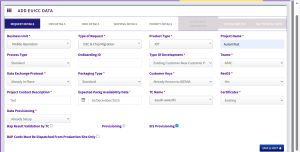
Request Type Page Attributes
- Business Unit > Please select business unit from dropdown like ‘Citizen Identity’ or ‘Mobile Operators’
- Type of Request > Type of Request for the BAP must be selected from dropdown (Options: Customer Request, D2C & Chip Migration, and Test / Prototype / Proof of Concept (BAP not eligible to mass production).
- Product Type > Product Type for the BAP must be selected from dropdown (Options: IOT, Automotive M2M, Automotive Consumer, Standard eUICC, or NFC).
- Project Name > Project Name of each request must be filled mandatorily in this text box.
- Process Type > Process Type for the BAP must be selected from dropdown (Options: Standard or IATF).
- Data Provisioning > Data Provisioning for the BAP must be selected from dropdown (Options: Not Needed, Already Setup, Requires Internal Setup, or Requires External Setup).
- Type of Development > This field is auto populated based on the selection made previously.
- Teams > Teams must be selected from this dropdown (Options: IOT, Automotive, India, APAC, LATAM, EUROPE, MEA, GAM, and NORAM).
- Data Exchange Protocol > Data Exchange Protocol for the BAP must be selected from dropdown (Options: Already in Place, New by Setup by SFTP, or New Setup by Email).
- Packaging Type > This field must be selected from the dropdown (Options: Standard or Customized).
- Customer Keys > This field must be selected from the dropdown (Options: Already Known to IDEMIA, Require New Key Ceremony, or To be Transferred from Another Location).
- ResOS > This field must be selected from the dropdown (Options: Yes or No).
- Project Context Description > This must be given by the TC.
- Expected Packaging Availability Date > This must be given by the TC.
- TC Name > This must be given by the TC.
- Certificates > This field must be selected from the dropdown (Options: Key, Existing, or Transfer).
- BAP Result Validation by TC > In case, TC needs to validate the BAP results, this option is selected.
- Provisioning > It is selected by default.
- BAP Cards Must Be Dispatched From Production Site Only > It is selected on the basis of any priority of the location.
- Save & Next Button > Post filling all info on request type page, click on Save & Next> Info will be saved and you will be redirected to Profile Details Page.
OEM (Original Equipment Manufacturer) Details Page
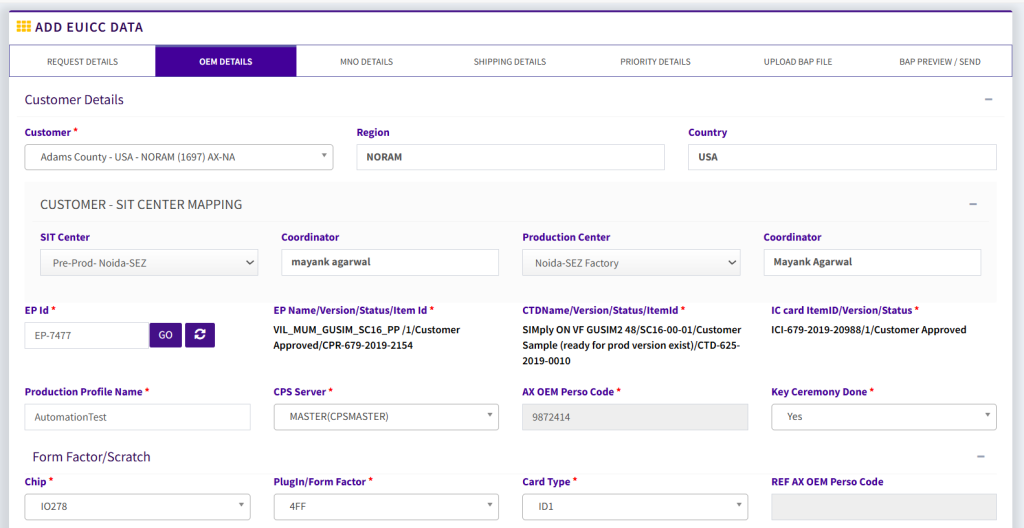
OEM (Original Equipment Manufacturer) Details Page Attributes
Customer Details Section
- Customer > This field in Customer Details section must be selected from the dropdown depending upon form which customer the request has been raised.
- Region and Country > These fields are auto populated based on the customer selected.
Customer – SIT Center Mapping Section
- SIT Center > This field in Customer – SIT Center Mapping section must be selected from the dropdown depending upon the need.
- Coordinator > Based upon the SIT Center, this is automatically populated.
- Production Center > Based upon the SIT Center, this is automatically populated.
- EP ID > TC has to write EP-ID in this text box. Click on go & then on Refresh to synchronize info of EP/CTD/IC Card Image Master from SharePoint on real time basis. Please raise SR on SharePoint TEC interface in case you see any wrong Info in any of EP/CTD/IC Card Image Master post clicking on refresh on SIMPhony. Once info gets updated in SharePoint, click again on refresh on SIMPhony and updated info will be synchronized on SIMPhony. This field is mandatory and needs to be filled. On the basis of the EP ID the following fields are auto populated:
EP Name/Version/Status/Item Id, CTDName/Version/Status/ItemId, and IC card ItemID/Version/Status. - EP Name/Version/Status/Item Id > This dropdown will be auto populated based on EP-ID selected by TC. Status update of this Master is under responsibility of TEC team & can be updated using Masters Tab. BAP can be submitted only if EP status is “BAP Approved.”
- CTDName/Version/Status/ItemId > This dropdown will be auto populated based on EP-ID selected by TC. Status update of this Master is under responsibility of TEC team & can be updated using Masters Tab. BAP can be submitted with CTD status as “Customer Sample” OR “Ready for Prod”. CTD Masters can also be updated by TC from his interface from CTD Masters in case BAP is submitted to Pre-Prod with CTD Status as “Customer Sample” in case of new CTD.
- IC card ItemID/Version/Status > This dropdown will be auto populated based on EP-ID selected by TC. Status update of this Master is under responsibility of TEC team & can be updated using Masters Tab. BAP can be submitted only if IC Card Image status is “BAP Approved.”
- Production Profile Name > Unique Production Profile Name needs to be filled in this text box (Mandatory).
- CPS Server > CPS server must be selected from the options available in the dropdown.
- AX OEM Perso Code > Unique 7-digit code needs to be filled every time we create a BAP request.
- Key Ceremony Done > BAP Request will only be allowed to send further to TEC/Pre-Prod team only in case Key Ceremony done is marked as “Yes”. TC needs to ensure that Key Ceremony is already done prior to proceeding with BAP request on SIMPhony. Option of “No” is available only to save request in draft mode.
- Chip > TC can select chip type from this dropdown. If case required chip type is not available in the chip dropdown, please send an email to Product Owner with the info of chip type required.
- Plugin/Form Factor > TC can select required form factor from this dropdown.
- Card Type> TC can select required Card Type from this dropdown.
- Scratch Label Required > “Yes” or “No” has to be selected in this field based on the scratch label requirement on BAP or Mass Production.
- Save & Next > Post filing all info on product details page, click on Save & Next> Info will be saved and you will be redirected to request details page.
MNO (Mobile Network Operator) Details Page
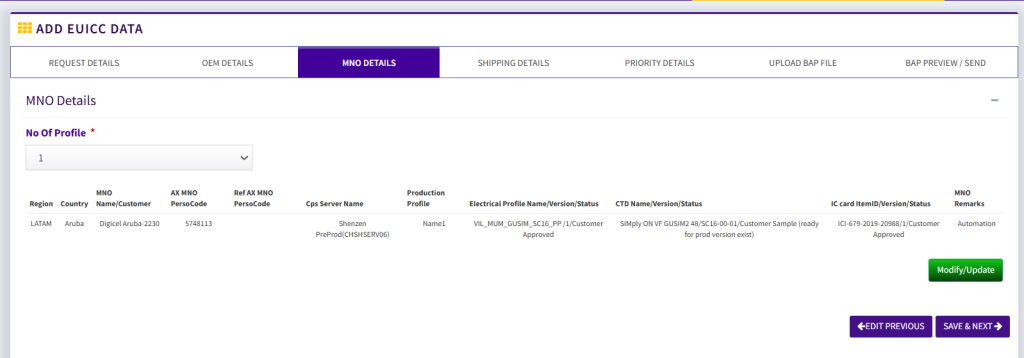
No. of Profile > Depending upon the number of profiles chosen here from the dropdown, the same number of MNO’s (Mobile Network Operator) will be present in the request.
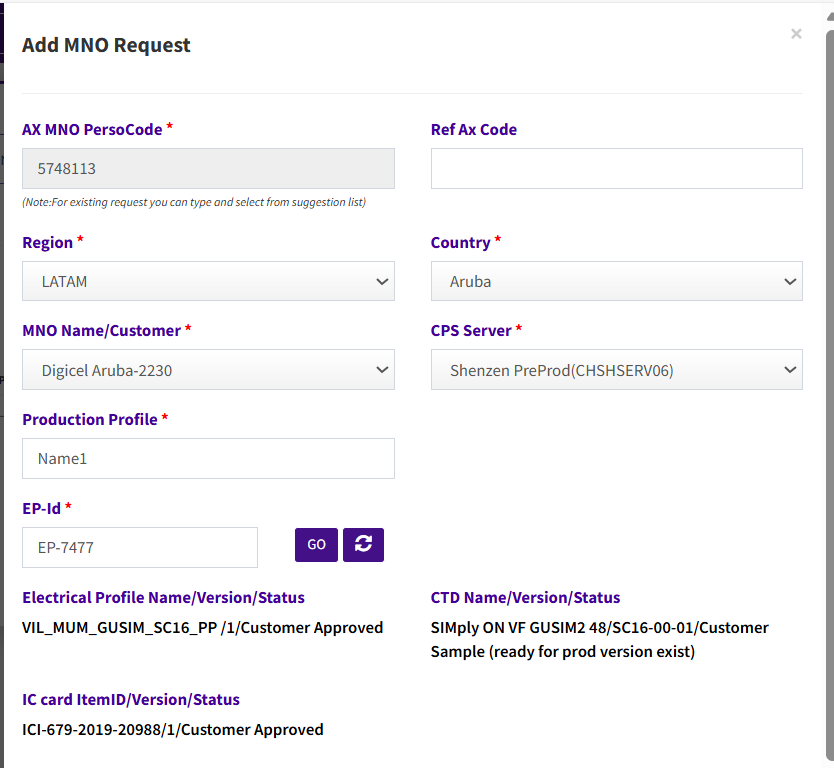
AX MNO Perso Code > Unique AX MNO Perso code needs to be filled in this text box.
Ref Ax Code > In case TC has any reference code he/she mentions it here and all the details to be filled in the fields are fetched automatically.
Region > This field must be selected from the options available in the dropdown (Options: India, APAC, LATAM, NORAM, ME & CSEA, North Europe, SE & SWA).
Country > This field must be selected from the options available in the dropdown.
MNO Name/Customer > This field must be selected from the options available in the dropdown.
CPS Server > This field must be selected from the options available in the dropdown.
Production Profile > Unique text needs to be filled in this text box.
EP ID > TC has to write EP-ID in this text box. Click on go & then on Refresh to synchronize info of EP/CTD/IC Card Image Master from SharePoint on real time basis. Please raise SR on SharePoint TEC interface in case you see any wrong Info in any of EP/CTD/IC Card Image Master post clicking on refresh on SIMPhony. Once info gets updated in SharePoint, click again on refresh on SIMPhony and updated info will be synchronized on SIMPhony. This field is mandatory and needs to be filled. On the basis of the EP ID the following fields are auto populated:
EP Name/Version/Status/Item Id, CTDName/Version/Status/ItemId, and IC card ItemID/Version/Status.
EP Name/Version/Status/Item Id > This dropdown will be auto populated based on EP-ID selected by TC. Status update of this Master is under responsibility of TEC team & can be updated using Masters Tab. BAP can be submitted only if EP status is “BAP Approved”
CTDName/Version/Status/ItemId> This dropdown will be auto populated based on EP-ID selected by TC. Status update of this Master is under responsibility of TEC team & can be updated using Masters Tab. BAP can be submitted with CTD status as “Customer Sample” OR “Ready for Prod”. CTD Masters can also be updated by TC from his interface from CTD Masters in case BAP is submitted to Pre-Prod with CTD Status as “Customer Sample” in case of new CTD.
IC card ItemID/Version/Status> This dropdown will be auto populated based on EP-ID selected by TC. Status update of this Master is under responsibility of TEC team & can be updated using Masters Tab. BAP can be submitted only if IC Card Image status is “BAP Approved”
MNO Remarks > In case TC needs to mention anything, he/she can mention it here in this section.