
Artwork Request Creation List
The Artwork Request Creation List displays all artwork requests created or sent back for revision within the selected date range. This screen is mainly used to track, edit, and recreate artwork requests.
Only those requests appear in this list that are sent back as “Not OK” through the Change Request process. These requests require corrections or updates before being resubmitted.
Key Features:
- Displays request details such as Request Number, Status, SIMPra Request Number, Customer Group, Bank Name, Sales Office, Scheme, BIN Number, Artwork Name, and Created/Updated information.
- New button is used to create a fresh artwork request.
- Edit option allows users to modify sent-back requests before resubmission.
This screen helps ensure controlled rework and proper resubmission of artwork requests that require changes.
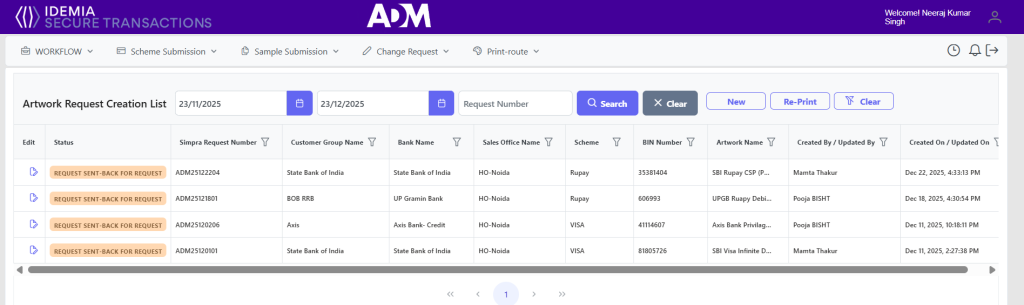
Edit Artwork Request
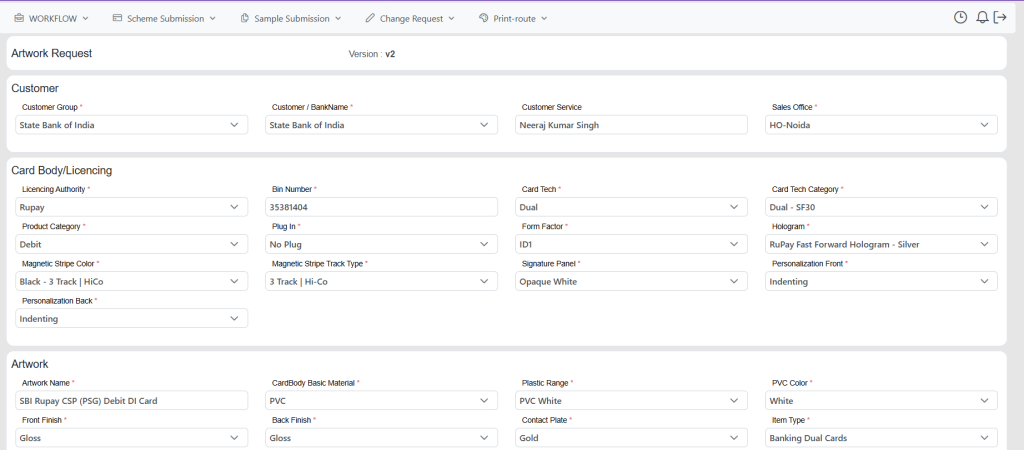
New Artwork Request
When the user clicks the NEW button on the Artwork Request Creation List, the system redirects to the Customer Product List screen. This screen is used to select the customer product for which a new artwork request will be created.
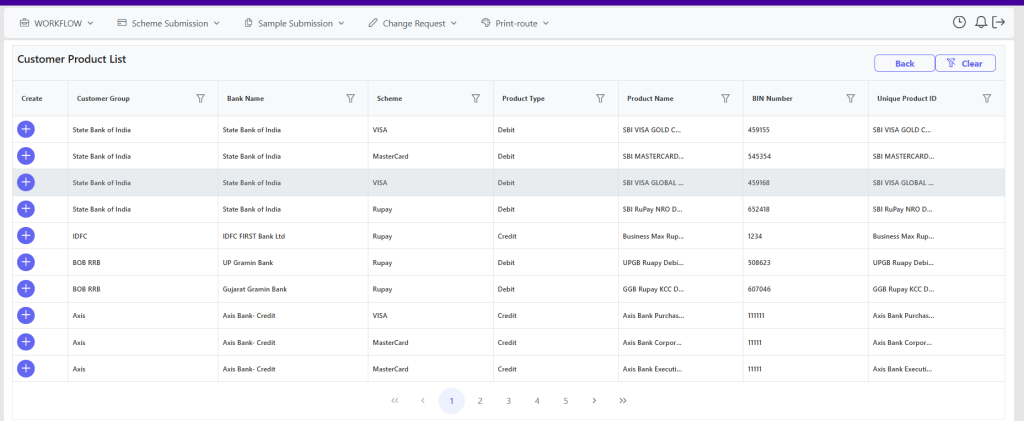
Users first select the Customer Group, By clicking Create against the required product, the user initiates the artwork request creation process for the selected customer and product combination.
This step ensures that artwork requests are created only for valid, predefined customer products, maintaining accuracy and consistency in artwork configuration.
Artwork Request
After selecting the required product from the Customer Product List, the system opens the Artwork Request form for creating a new artwork request.
In this screen, customer and product details such as Customer Group, Bank Name, Sales Office, Licensing Authority, BIN Number, and Card Technology fields are displayed for selection or confirmation. Users define complete card specifications, including product category, form factor, hologram, magnetic stripe details, signature panel, and personalization options.
In the Artwork section, users enter the Artwork Name, Artwork Reference/CRS, select card body and material details, and upload reference images or supporting files. Users can also select CS users for email notifications.
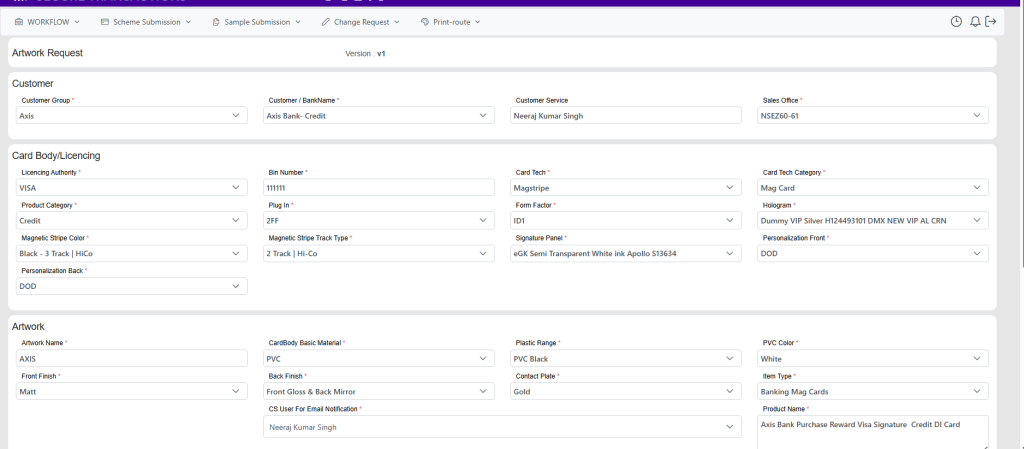
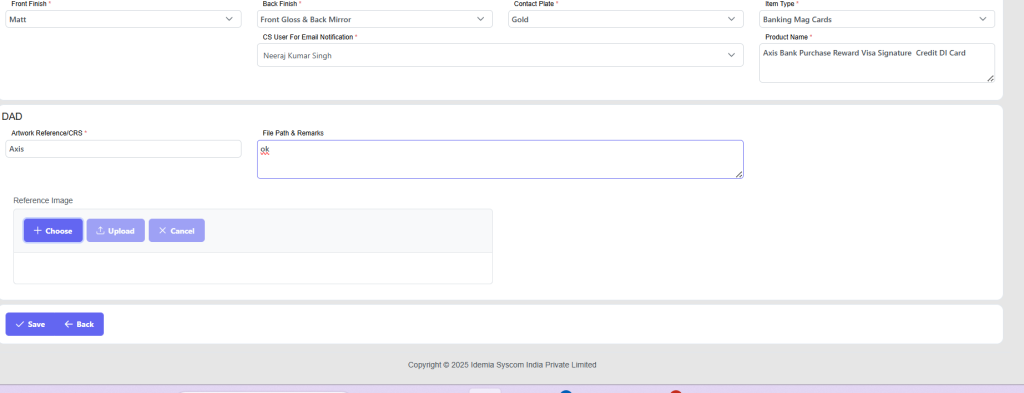
Once all mandatory fields are filled, the artwork request can be saved and submitted, initiating the artwork design and review workflow.