
Approved Batch List
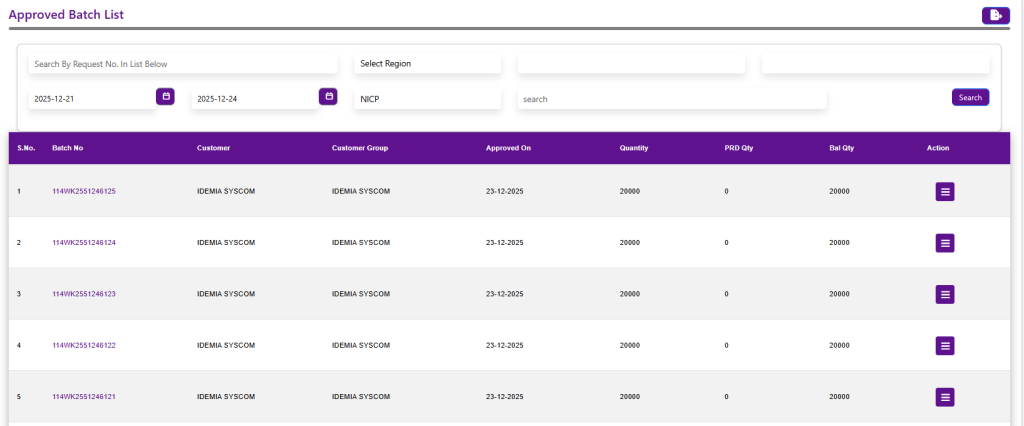
The Approved Batch List displays all batches that are approved and ready for production. Users can search by Batch Number and filter records by Region and Date Range.
This list shows key details such as Batch No., Customer, Customer Group, Approval Date, Batch Quantity, Produced Quantity (PRD Qty), and Balance Quantity. From this screen, users use the Action / context menu to create production entries, initiating the manufacturing process for the selected batch.
Production Entry
The Production Entry screen is used to record actual production activities against an approved batch. It captures complete batch, work order, and sales order details, ensuring production data is accurately mapped.
Users enter production date, review batch and work order quantities, and track material consumption at reel level. The system records good (perso), reject, and fresh quantities, calculates total consumption, and updates the current balance automatically.
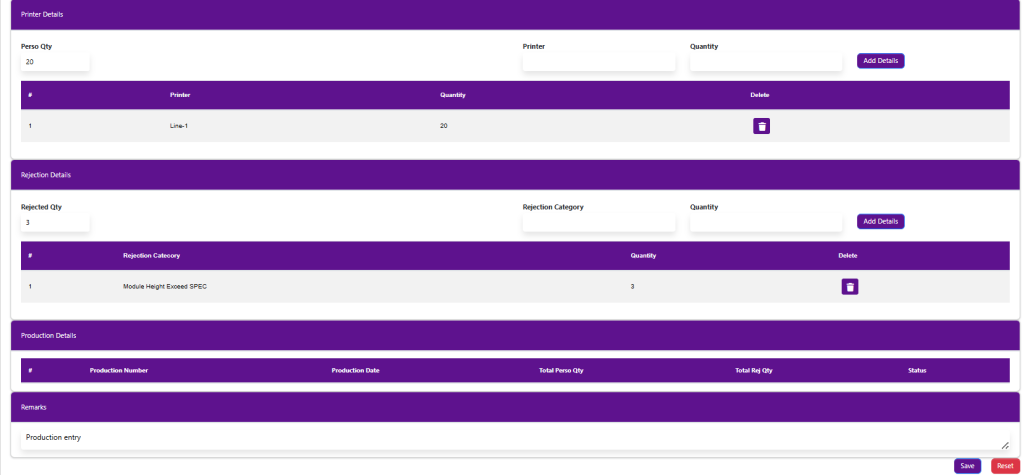
In the Printer Details section, users allocate the Perso quantity to specific printers or production lines. The Rejection Details section captures rejected quantities along with rejection categories for quality tracking.
Finally, the Production Details section summarizes the production transaction with production number, date, produced quantity, rejected quantity, and status, while remarks can be added before saving the production entry.
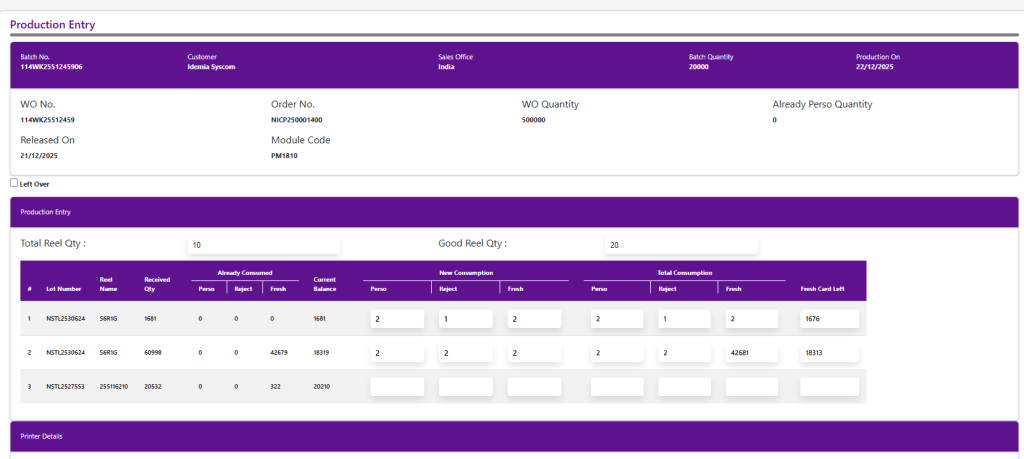
The Production Entry screen is used to capture actual production consumption and output for an approved batch. It records reel-wise material usage, printer-wise personalization quantity, and rejection details, ensuring accurate production tracking.
In the Consumption section, users enter Perso, Reject, and Fresh quantities against each reel. The system calculates total consumption and updates the fresh card balance automatically.
The Printer Details section is used to allocate the total Perso quantity to specific printers or production lines.
The Rejection Details section captures rejected quantities along with rejection categories for quality analysis.
The Production Details section summarizes the production transaction, while Remarks allow users to add notes before saving.